Put AI where the work already happens
The hardest part of student work is rarely opening a blank document. It is the frenzied art of turning a disorganized week’s worth of notes, browser tabs, critical comments, and shoddy computations into a polished submission. Managing a different chatbot may seem like a simple remedy, but it just makes things more difficult by making you continuously copy and paste, lose important context, and completely forget where your arguments came from.
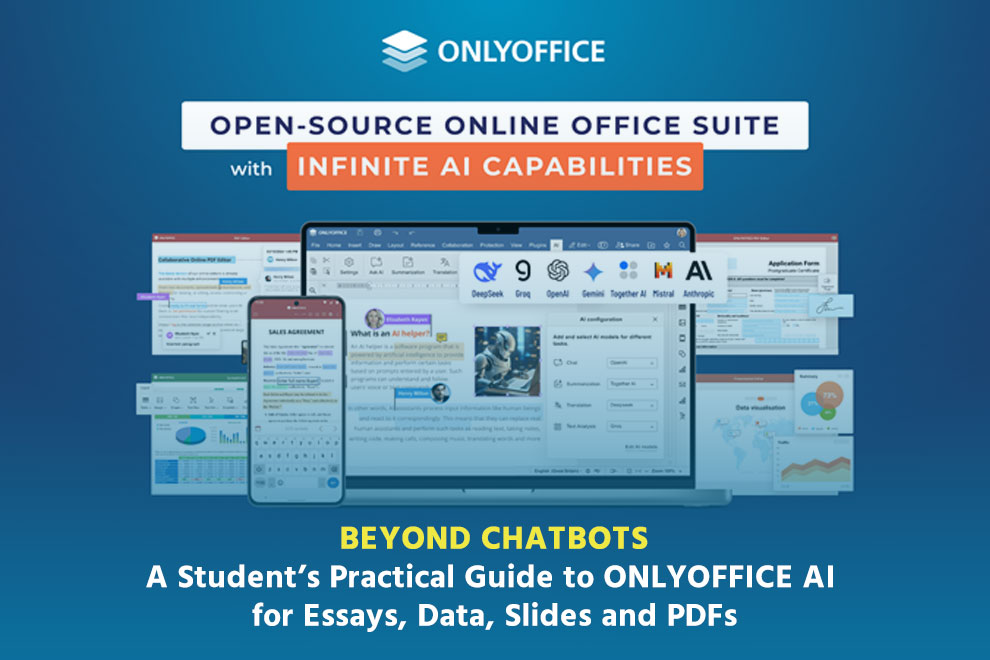
That is why AI inside an office suite is more useful than it first sounds. ONLYOFFICE is an open-source office suite for creating, editing, and collaborating on documents, spreadsheets, presentations, forms, and PDFs. Its AI tools bring assistance directly into those everyday workspaces, allowing students to rewrite text, summarize material, translate passages, extract text from scans, and get help with spreadsheet functions. AI is not intended to write the entire submission. It is to remove obstacles at critical points so you may devote more effort to the aspects that require genuine discernment, such as evaluating evidence, confirming information, and developing a case that is all your own.
Essays: improve the draft without replacing your voice
You are ruthlessly mocked by the flickering cursor. A new breed of digital gremlins is unleashed when you outsource your whole book to a bot: robotic writing, hazy “facts,” and a final document devoid of your distinctive individuality. Sure, it defeats the blank-page monster. Rather, give the machine unprocessed notes, a strong argument, and a simple outline. The built-in AI sharpshooter in your word processor may then be used to precisely cut off fat paragraphs, find repetitious language, demystify difficult topics, or reveal logical flaws.
A history student might draft a paragraph on the causes of a policy change, then ask for a clearer structure rather than a new conclusion. The student still checks quotations against the source and decides which revision fits. Summaries and grammar corrections save time, but they don’t confirm facts. Until you locate the original source, treat any produced reference, date, or quotation as untrustworthy. A terrible revelation at the conclusion of an article is avoided by that tiny practice.
Spreadsheets: ask for the formula, then test the answer
Spreadsheets punish vague thinking. A polished paragraph can hide a weak idea; a spreadsheet exposes mistakes through a wrong total or an empty chart. Students often waste time searching for a function to clean dates, calculate an average, compare survey groups, or flag missing values. ONLYOFFICE can use AI to suggest functions, create macros, and help analyse data. It is useful when you understand the question but cannot remember the syntax.
Imagine tracking survey responses for a psychology project. After requesting an accurate method to compute finished entry averages, test five sample rows by hand. If such results conflict, carefully examine cell linkages and blank value regulations before releasing it over the whole active spreadsheet. AI can help describe a pattern in a chart, but a pattern or correlation does not establish cause and effect. You still need to consider the study design, sample, and other explanations. Label charts plainly and note assumptions. Those habits matter more than a clever formula.
Presentations: use AI to reduce clutter, not add more
Presentation software encourages a familiar mistake: putting the entire essay on every slide. AI can make that worse when it produces an impressive-looking wall of bullets. In ONLYOFFICE, it can help create text, images, tables, and slide content, but students should set the rules first. One idea per slide is a useful start. Use a chart when the numbers carry the point. Put the fuller explanation in speaker notes or say it aloud.
For a group presentation, agree on the claim and assign sections. Ask the assistant to turn each section into a slide outline with a title, two supporting points, and a suggested visual. Then cut one bullet from every slide. The deck is usually clearer. Algorithms can easily create basic frameworks and smooth over awkward transitions, but they are completely unaware of which particular narrative will truly capture your teacher or classmates. A physical run-through, which brutally reveals the unpleasant reality that a certain visual aid only works if the room absorbs it in complete quiet, fills that vital gap.
PDFs and research packs: find what deserves a close read
More PDFs journal articles, lecture packets, assignment briefs, scanned chapters, and feedback forms are sent to students than they can easily read. The challenge is triage. ONLYOFFICE’s AI tools include OCR-related tasks that can extract text from scanned PDFs and images. Its assistant can also summarize content and pull out keywords. That makes a long reading list less intimidating, particularly when a scan has no selectable text.
Use the output to decide where to read closely, rather than as a substitute for reading. A summary may miss a qualification in the methods section, and keyword lists can ignore the author’s actual argument. For an assignment brief, extract deliverables, dates, and criteria, then compare the list with the PDF. Look for the research paper’s abstract, conclusion, and compelling evidence supporting your selected argument. Always double-check every single figure and sentence that is cited, word for word, and be on the lookout for any subtle OCR mistakes that could be concealed in tables and footnotes.
Custom assistants and agents: choose the right kind of help
Custom assistants and AI agents sound similar, but they solve different student problems. A custom assistant function is a repeatable prompt you create in the Document Editor and add to the toolbar. It excels in rigorous, high-repetition document tasks, such as turning disorganized data tables into cleanly labeled shapes, vetting a paragraph against the assignment prompt like a hawk, or turning rambling lectures into snappy retrieval exercises. Even better, combine different AI engines for specialized tasks, using one designed for smooth translations and another for editing snappy text.
Agents work at the workspace level. In ONLYOFFICE DocSpace, they can help organise files, find information, manage access, and support collaborative work. That is more relevant to a group managing shared research, drafts, and presentation files than to a student polishing a single paragraph. Keep instructions narrow and include boundaries. A revision helper can preserve meaning, mark unsupported claims, and never add sources. Before an agent touches shared material, agree on access, folder names, and where the final version lives.
Keep your judgment in the document
AI is most effective when it reduces needless friction. It can create a new outline, polish a lengthy paragraph, decipher a difficult translation, suggest an exact formula, extract text from a resistant scan, or quickly turn unprocessed notes into a preliminary slide show. Those are real gains during a crowded week. But finished work still needs your judgment. You need to recognise a bad source, explain the calculation, notice when a summary misses the point, and stand behind the argument.
Use ONLYOFFICE AI as a set of tools inside the office work you already do, rather than as a replacement for the work. Pick the model, custom assistant, or workspace agent that fits the task. Then follow one rule: Give AI a narrow job. Verify what it returns. Keep the final judgment yours.