Late-night slide prep drains energy that should go to students. Yet thousands of us still spend hours nudging text boxes before first period.
AI can hand those hours back. A Gallup-Walton survey of 2,000 K-12 teachers found that 30 percent already use AI weekly—and they save about six planning hours in the process.
We tested every major generator, built a scoring rubric, and ranked the seven standouts. You’ll see which one lives inside Google Slides, which sparks live polls, and which nails design polish. Ready to reclaim your evenings? Let’s dive in.
How we picked the winners
Our research process
We began where most teachers begin: skimming every “best AI presentation maker” list Google returned. After 26 round-ups, product pages, and forum threads, we had a long list of 15 contenders.
Reading reviews wasn’t enough. We created accounts, loaded sample lesson plans, and timed how long each tool needed to turn a blank canvas into a usable deck. We logged crashes, quirks, and the edits required before a presentation felt classroom-ready.
Next, we interviewed 12 educators from different grade bands. They cared most about integration with district-approved platforms, a gentle learning curve, and text that lands at the right reading level on day one. Their input refined the scoring rubric in the next subsection.
Finally, we compared our impressions with independent coverage: industry blogs, ed-tech surveys, and the Gallup-Walton poll that tracks AI adoption in schools. When hands-on testing, educator feedback, and third-party data pointed to the same frontrunners, a clear top tier emerged.
Those are the seven tools you’ll meet in the countdown.
Why AI presentation tools matter in real classrooms
Teachers juggle lesson prep, grading, hallway duty, and a dozen other tasks that never make the calendar. Slide creation often slips to the evening, right when energy dips and family life is waiting.
The same Gallup-Walton survey showed that weekly AI users reclaim six full planning hours. Six hours equals almost one teaching day each week, time you can redirect to one-on-one conferences or an earlier trip home.
Time saved is the first win. Learning impact is the second.
Well-built AI decks cut cognitive clutter. They turn dense paragraphs into clean bullets, pair concepts with visuals, and lower reading levels on demand. Students process information faster, and you field fewer blank stares.
Accessibility rises, too. Many tools auto-generate alt-text, captions, or multi-language versions, making lessons equitable without extra work. When these features live inside Google Slides or PowerPoint, they inherit the privacy safeguards your district already trusts, a critical check box for ed-tech approval.
Add-ons such as Plus AI bake those inclusive features right into the Google Slides sidebar you already use, so nothing leaves the district domain and FERPA safeguards stay intact.
A quick click on the Rewrite → Translate option can flip the entire deck into Spanish, Mandarin, or dozens of other languages, removing a common access barrier for multilingual classrooms.
Engagement follows. Platforms such as Curipod weave polls and word clouds into the flow so every five minutes students interact instead of watching passively. Formative data streams back to you in real time, showing who is on track and who needs a nudge.
Put it together and the case is clear: AI presentation tools lighten the load and improve how content lands and how students respond. That dual payoff explains why we back the seven picks coming up next.
1. Plus AI: best for Google Slides and PowerPoint loyalists
With more than two million installs and a 4.6 rating on the Google Workspace Marketplace, Plus AI has become a go-to ai presentation maker for teachers who already build lessons in Google Slides or PowerPoint.
Open your usual slide deck, click a new sidebar, and watch a lesson spring to life. That is the Plus AI experience in a sentence.
Plus AI Add-on Inside Google Slides Screenshot.
Because the add-on lives inside Google Slides and PowerPoint, you stay within the ecosystem your district already approves. No uploads, no new log-ins, and FERPA protections ride along with the parent platform. Integration this tight was a non-negotiable for us, and Plus AI meets it, according to an iLounge review of AI presentation generators.
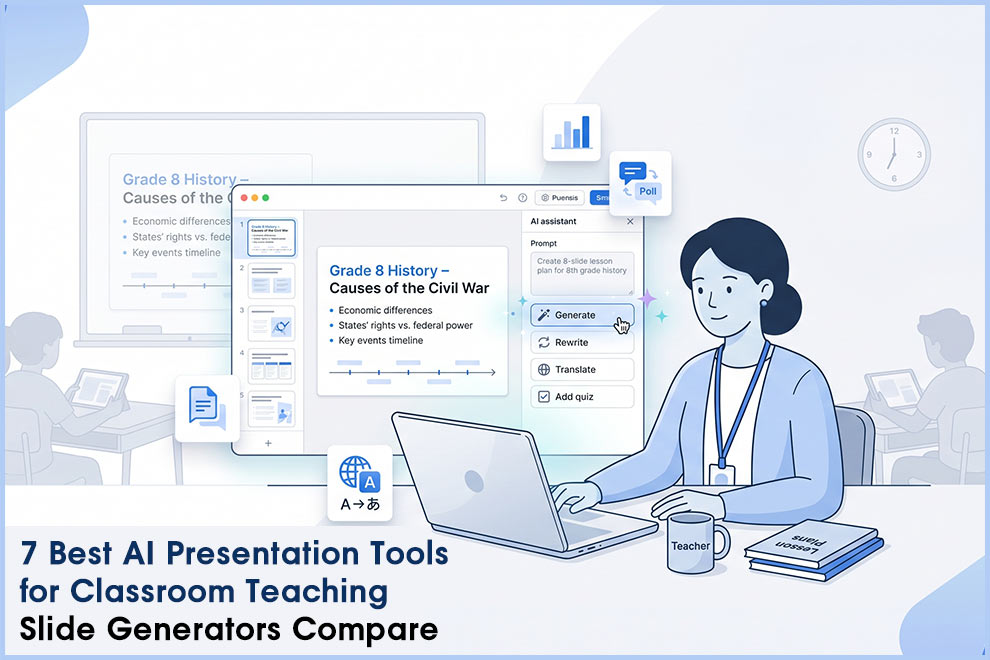
Speed is the next win. We timed the tool at roughly 30 seconds from prompt to draft deck, quick enough to fit between classes. A history teacher in our pilot tried “Causes of the American Civil War, eight slides, grade 8” as her first test. She spent another five minutes hitting Remix to swap dense bullets for a clean timeline graphic, then walked into third period ready to teach.
Quality holds up. Slide text lands at the requested reading level, images come royalty-free, and Remix can turn a block paragraph into a chart or infographic without disturbing layout. That one-click polish removes work designers usually charge extra for.
Cost is ten dollars per month after a seven-day free trial. For most educators, that equals two coffees in exchange for an hour reclaimed each afternoon. Districts on tight budgets appreciate that students never need accounts; sharing works through the same Google or Microsoft permissions already in place.
Drawbacks? Plus AI is not a standalone studio. If you prefer flashy web-native decks or built-in live polls, other picks will serve you better. For teachers who live in Slides or PowerPoint, though, Plus AI feels less like another app and more like a long-overdue upgrade.
2. Gamma: best for web-native interactive decks
Picture a deck that feels more like a scrolling story than a click-next slideshow. That is Gamma’s specialty.
Feed it a prompt such as “Photosynthesis, grade seven, include quiz” and the tool spins up a polished, web-based deck in under a minute. Cards glide beneath a student’s fingertip, mixing text, images, and a recap quiz at the end. The format invites exploration, ideal for flipped lessons or homework study guides.
Gamma Web-Native Interactive Deck Screenshot.
Editing stays conversational. Type “turn this block into a diagram” and the AI obliges, redrawing content without making you wrestle with boxes and lines. Need more rigor? Ask it to add an open-ended discussion prompt or shrink a paragraph to three key points. It feels like a friendly design assistant on standby.
Sharing is instant. Gamma provides a secure link you can drop into Google Classroom or your LMS. Students open it on any device, no installs required. Analytics show who viewed each card, so you can spot gaps before the test.
Trade-offs exist. Because the deck lives online, offline classrooms or projector-only setups may feel limited. Export options flatten interactivity to static slides or PDF. The free tier supplies 400 one-time credits; frequent users will hit the cap quickly.
When speed and engagement top your wish list, Gamma delivers a fresh take on classroom presentations with style that rivals pro design shops.
3. Canva: best for visual polish on a teacher budget
If design is not your strong suit, Canva steps in like a friendly art teacher who handles the heavy lifting.
Type a prompt or drop in an outline, and Magic Design stitches together a full deck, complete with themed backgrounds, readability-friendly fonts, and on-topic graphics from Canva’s large media library. No hunting for royalty-free images or agonizing over color palettes; the AI makes the aesthetic calls so you can stay focused on content.
Canva Magic Design AI Presentation Maker for Teachers.
The free Education plan is the standout benefit. You and your students get pro-level templates, brand kits, and AI features at zero cost after quick verification. That means unlimited access to millions of icons, photos, and videos without dipping into personal funds. Districts appreciate the built-in COPPA compliance, and you will not run into a surprise paywall mid-project.
Collaboration shines here. Add a co-teacher or an entire class to the deck, assign slides, and watch real-time edits roll in. Some teachers even turn this into a project workflow: students research in Docs, then each group member edits an assigned slide while Magic Design keeps the visual style consistent.
The trade-off? Canva’s AI produces passable but surface-level text. Think of it as a design assistant first and a writing helper second. Serious lesson depth still calls for your expertise, though Magic Write can rough in bullet points when you are pressed for time.
Bottom line: Canva delivers eye-catching slides fast, costs nothing for schools, and plays well with group work. When presentation aesthetics matter as much as accuracy, it is a clear pick.
4. Visme: best for turning raw data into stories
Some lessons live and die by the graph. When your climate-change unit needs a CO₂ trend line that sticks in students’ minds, Visme is ready.
The platform’s AI goes beyond outlines. Paste a data table, and it proposes charts, maps, and infographics that match the narrative. A few clicks later, an animated line graph guides students from numbers on a page to the moment they notice the curve climbing.
Visme Data-Driven Classroom Presentation Screenshot.
Design quality feels boardroom-level. Clean fonts, sleek color palettes, and subtle animations arrive pre-baked, so you spend minutes tweaking instead of hours fixing formatting. For business, science, or any course heavy on statistics, that polish turns abstract figures into visual hooks students remember.
Visme also offers interactive widgets. Add a short quiz slide or a clickable timeline without leaving the editor. It is not as fully live as Curipod, but for self-paced exploration or project showcases, those touches keep learners curious.
Cost is about three dollars a month on the education plan, a small price for professional graphics. The learning curve is steeper than Canva’s, yet science and economics teachers in our test group mastered the basics in one prep period.
One caution: exporting complex animations to PowerPoint can flatten them to static images. Present directly from Visme when possible to keep the motion alive.
For classes where data must pop off the slide and into long-term memory, Visme earns its place in your toolkit.
5. SlidesAI: best free add-on for last-minute decks
When the bell rings in ten minutes and your lesson plan is still a wall of text in Google Docs, SlidesAI steps in.
Install the add-on once, open any Google Slides file, and a new “Generate” button appears. Paste your outline or even a full essay, click Create, and the tool breaks paragraphs into slide titles, concise bullets, and safe-search visuals. Because all work happens inside Slides, your existing fonts and themes carry over unchanged.
Simplify is the headline trick. Highlight dense wording, click the icon, and SlidesAI rewrites it at a lower reading level. Differentiation completes in two taps, a relief for mixed-ability classes.
The free tier lets you build about a dozen short decks each year, enough for emergencies or for students who need to convert reports into presentations. Upgrading costs eight dollars a month for unlimited projects, still solid value for daily users.
You will not get flashy animations or built-in quizzes. SlidesAI chooses speed and structure over sparkle. Pair it with Canva for design polish or Curipod for interactivity and you have a rounded workflow.
If your classroom runs on Google Workspace and your budget is tight, SlidesAI is the quickest route from notes to presentable slides without adding another platform.
6. Curipod: best for live polls and on-the-fly formative checks
Lecture mode has limits. Curipod shifts the dynamic by weaving student responses into your slides every few minutes, so attention rarely drifts.
Type a prompt such as “Water cycle review, grade five.” Curipod drafts a concise explainer deck and, importantly, inserts polls, word clouds, and multiple-choice quizzes where they reinforce each concept. The free plan includes six interactive question types, all editable after the fact. Students join with a simple code, no accounts or emails required, then respond from any device. Answers animate on the main screen in real time, showing who understands condensation and who needs a nudge before the exit ticket prints.
Curipod Live Polls and Word Clouds Classroom Screenshot.
Privacy checks out. Because learners appear as anonymous guests, the platform meets COPPA expectations and speeds district approval. You supply content accuracy, Curipod handles the tech lift that usually hinders participation.
Pricing is generous. The free tier allows unlimited participants but limits you to two teaching sessions each week. Upgrading costs about nine dollars a month for unlimited sessions and deeper analytics.
If you crave constant feedback loops, Curipod turns any slide deck into a living conversation.
7. Google Slides with Gemini: best built-in option for Workspace users
If your district already runs on Google Workspace, Gemini (formerly Duet AI) is waiting inside Slides. Click the sparkle icon, ask for “Phases of the moon, eight slides, grade six,” and a skeletal deck appears within seconds, complete with titles, bullets, and images. The entire exchange stays in Google’s environment, so you rely on the same FERPA-compliant security your admins trust.
Because Gemini is native, there is no learning curve. Theme presets stay intact, sharing permissions carry over, and you can push the finished deck to Classroom with one click. Multi-language support helps dual-language classes or quick translations.
Output is solid but plain. Expect a serviceable outline rather than designer-grade polish, and plan to add richer visuals. Treat Gemini as an idea generator and time saver, not a full creative studio.
Cost seals the deal. Gemini is included when your school already pays for premium tiers such as Education Plus or the Teaching and Learning Upgrade, making it the default starting point before trying external tools.
Use it to draft a framework, then layer on Canva’s style or Curipod’s interactivity. For premium Workspace schools, Gemini delivers quick AI help without extra accounts.
At-a-glance comparison
Choosing the right assistant comes down to matching its strengths to your lesson style. Use the table below as a cheat sheet, then read the notes for added context.
| Tool | Stand-out strength | Works inside… | Free option? | Typical edu price |
| Plus AI | In-app generation, no extra clicks | Slides and PowerPoint | Trial (7 days) | $10 per teacher / month |
| Gamma | Web-native, scrollable decks | Browser link | Yes (400 credits) | $8 per month |
| Canva | Polished templates at no cost | Canva web editor | Yes (unlimited EDU) | Free for K-12 |
| Visme | Data-driven charts and infographics | Visme web editor | Limited plan | About $3 per seat / month |
| SlidesAI | One-click Doc-to-Slides | Google Slides add-on | Yes (12 decks / year) | $8 per month |
| Curipod | Built-in polls and quizzes | Browser session | Yes (2 sessions / week) | About $9 per month |
| Gemini | Draft generator inside Slides | Google Slides | Included in premium tiers | Varies by Workspace edition |
How to read the grid.
We focused on five facts teachers ask first: what each tool excels at, where it lives, whether a free tier exists, and the realistic monthly cost. Prices reflect June 2026 public rates; verify before budgeting.
Two quick insights stand out.
First, location matters. If you never leave Google Slides or PowerPoint, Plus AI and SlidesAI feel invisible but powerful. If you want a fresh canvas, Gamma and Visme open broader design lanes.
Second, money is less of a hurdle than before. Canva costs nothing for educators, Gemini comes with many Workspace plans, and paid tiers for most others hover around two coffees a month. Time saved becomes the real currency, so the winner is whichever tool cuts prep minutes for you.
With these snapshots in hand, pick your top two, run one lesson through each, and see which draft needs fewer tweaks. Ten minutes of testing beats pages of marketing copy every time.
Five fast tips for picking your perfect tool
Pick integration over novelty.
If you spend all day in Google Slides or PowerPoint, start with Plus AI or SlidesAI. Familiar software saves more minutes than any extra feature set on a new platform.
Match the tool to your teaching style.
Love live discussion? Curipod polls keep the room active. Need slick infographics for AP Econ? Visme fits the bill. Start with the pain point you feel most often, then choose the platform that solves it.
Count the clicks from idea to ready-to-teach.
Run a stopwatch on your first deck. If it still needs twenty edits to feel classroom ready, keep looking. The best AI helper should cut prep time by at least half right away.
Check free tier limits before committing.
Most platforms offer generous trials, then throttle exports or monthly credits. Note those caps next to your lesson frequency so you avoid mid-semester surprises.
Lean on student feedback as the final judge.
After one lesson, ask learners what they noticed. Better visuals? Smoother pacing? More interaction? If engagement rises, keep the tool. If eyes stay glazed, move to the next option on your shortlist.